
Create a Project Report
-
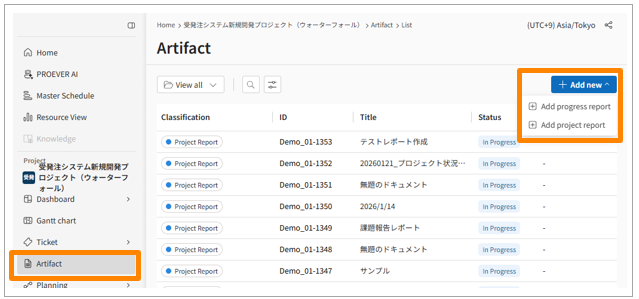
Click [Documents] on the side menu.
-
Click [Add new] > [Add Project Report].
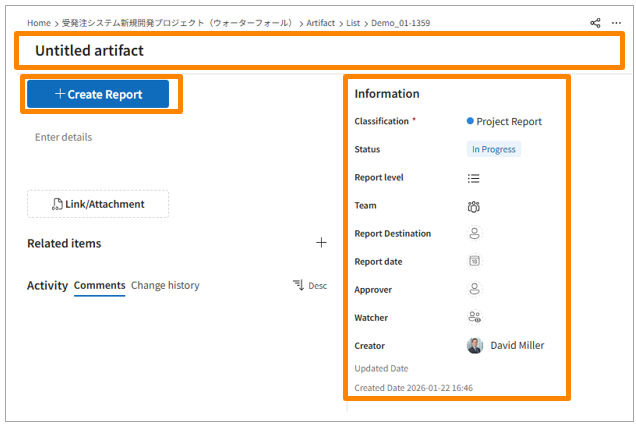
- The detail screen will appear. Fill in the subject, details, and the content for the Information Area
- [Create Report] and customize the necessary items to create your report.
- The process for customizing items is the same as for the Dashboard.
You can create reports using the same templates shared with your Dashboard.
Reference: Create, Edit, Duplicate, or Delete Dashboard Templates -
The following items are available exclusively in Project Reports. (They will not be displayed on the Dashboard.)
You can preserve the health scores and aggregated data at the exact moment the snapshot is taken, allowing you to save the project status as of a specific date.- Applicable Items: Program/Project List
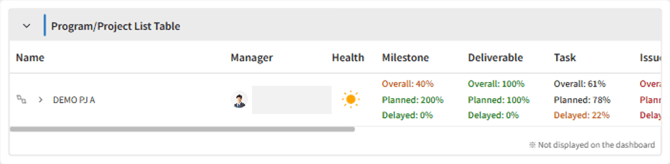
- Applicable Items: Program/Project List
- The process for customizing items is the same as for the Dashboard.
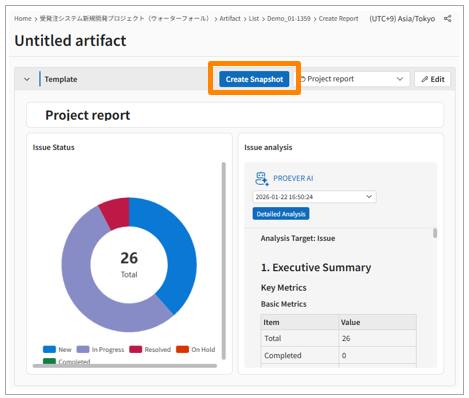
- Once you have finished customizing the items, click [Create Snapshot] to save the report with the current content.
The input fields are as follows:
| Field Name | Description |
| Main area | |
| Subject | Enter the title of the project report. |
| Details | Enter the body of the project report. Rich text formatting is supported, and images can also be inserted. |
| Related Items | You can link relevant document data and ticket data. |
| Comments | You can enter comments |
| Change History | The history of changes to the progress report will be recorded. |
| Information Area | |
| Category | Displays the document category |
| Status | Select one from “Draft,” “In Review,” or “Completed.” The status categories are “In Progress,” “In Progress,” and “Completed.” |
| Report Level | Select the appropriate level. |
| Report Destination | Select the user(s) to whom the report is addressed. Multiple selections are possible. |
| Team | Select the reporting team. For example, if it is a report from Team A, select “Team A.” |
| Report Date | Enter the date on which this project report is used for reporting. |
| Approver | Select the user who will approve the report content. |
| Wathcer | The user who created the progress report will be automatically entered. |
| Updated Date | The date and time the progress report was last updated will be automatically recorded. |
| Created Date | The date and time the progress report was created will be automatically recorded. |
Users who are designated as the Team, Recipients, Approvers, Watchers, or Creator of a Progress Report will receive an email notification when the corresponding report is updated.
Editing a Project Report
- Click [Artifact] in the side menu.
- Select the project report you wish to edit from the list.
- Click [Edit Report] to update the content.
Editing Constraints
-
Permissions: Only the creator can edit the report.
-
Addable Items: Static items (titles, rich text, images) can be added. However, dynamic items (such as graphs) cannot be added.
-
Reason: Because report data is fixed at the time the snapshot is created, the system cannot fetch new data to generate additional graphs.
-
-
Deletion: Existing graph items cannot be deleted.
-
Saving: Layout and text changes will be overwritten upon saving, but the snapshot data itself cannot be updated.
Duplicate a Project Reports
There are three main ways to duplicate a Project Report:
-
Duplicate by right-click on the Artifact list screen
-
Duplicate from the [ellipsis] displayed on the Artifact list screen
-
Duplicate by opening the applicable Project Report
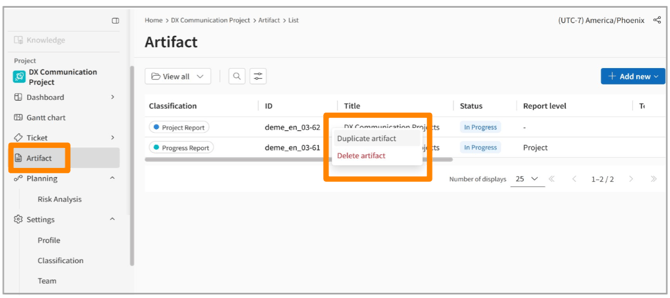
Duplicate from the Artifact list screen
- Click [Artifact] on the side menu.
- Hover over the applicable Project Report and right-click.
- Click [Duplicate Artifact].
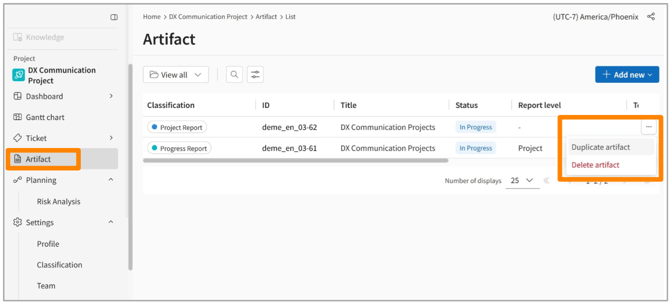
Duplicate from the [ellipsis] displayed on the Artifact list screen
- Click [Artifact] on the side menu.
- Click the [ellipsis] displayed to the right of the applicable Project Report.
- Click [Duplicate Artifact].
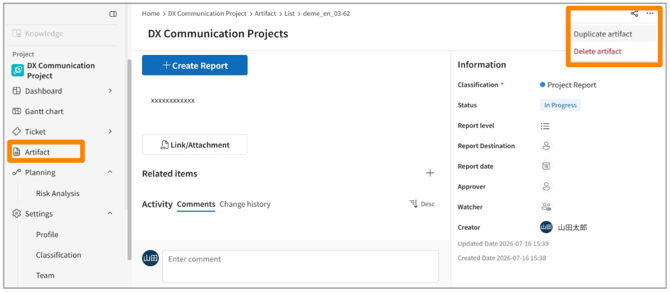
Duplicate by opening the applicable Project Report
- Click [Artifact] on the side menu.
- From the displayed list, click the Project Report you wish to duplicate.
- Click the [ellipsis] on the right side of the screen.
- Click [Duplicate Artifact].
Viewing Project Reports
You can view your created Project Reports from the Documents list.
Exporting Project Reports
You can download Project Reports as a PDF from the report viewing screen. The downloaded file will be saved to your local device.