
Creating a Dashboard Template
-
Open the Dashboard.
-
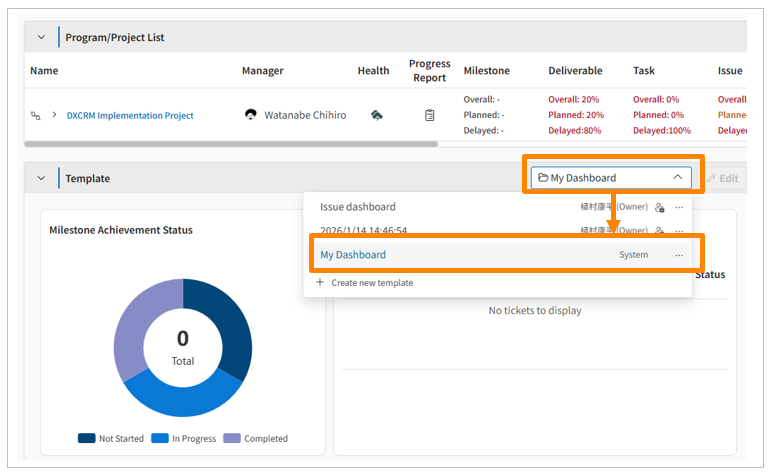
Click the template dropdown menu at the top right of the graph area, then click [Create New Template].
-
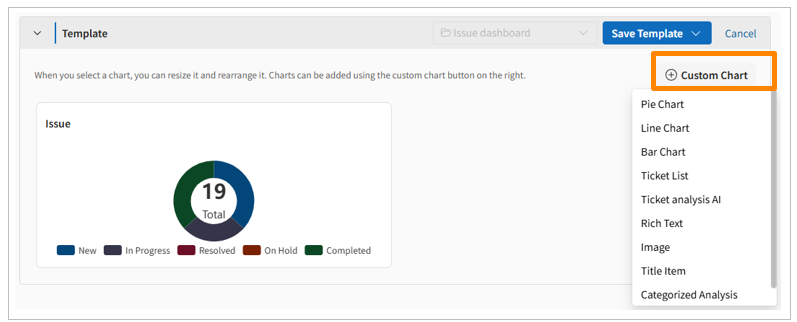
Click [Custom Chart] to add graphs or ticket lists. (For details on adding items, refer to [link to item addition section/page]).
-
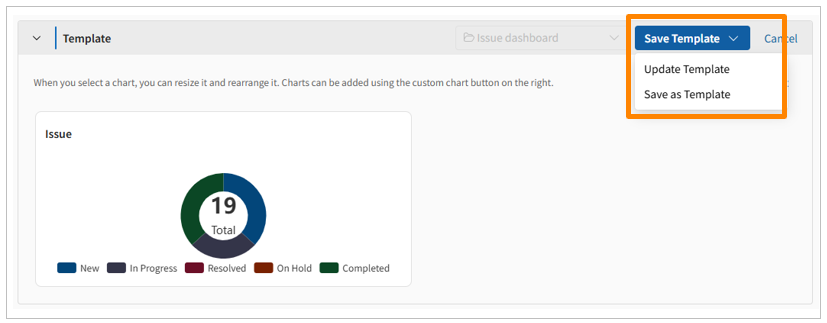
Click [Save Template] > [Update Template] or [Save as New Template].
-
Enter a "Template Name".
-
If necessary, check the "Make this template public to all users with access" checkbox.
-
Click [Save].
If you check "Make this template public to all users with access," all users with access to the relevant program/project can view this template. If unchecked, only the creator of the template can view it.
Editing a Dashboard Template
-
Open the Dashboard and select the template you want to edit from the dropdown in the top-right corner of the graph area.
-
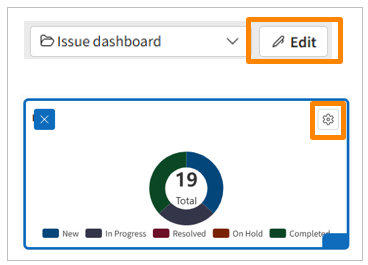
Click [Edit] and then click the gear icon for each item to change its settings.
-
Click [Save Template] > [Update Template].
-
Click [Save].
Only the user who created the template can edit it. If you cannot edit a template, please ask the creator or duplicate the template to make changes.
Duplicate a Dashboard Template
-
Open the Dashboard and select the template you want to duplicate from the dropdown in the top-right corner of the graph area.
-
Click [Edit] > [Save Template] > [Save as Teplate].
-
Ente a template name.
-
Click [Save].
Deleting a Dashboard Template
-
Open the Dashboard, and from the dropdown in the top-right corner of the graph area, click [...] > [Delete] next to the template you want to delete.
-
In the modal that appears, click [Delete].
Only the user who created the template can delete it.
Adding Items
You can add Pie Charts, Line Charts, Bar Charts, Ticket Lists, Ticket analysis AI, Rich text, Image or Title item.
-
Open the Dashboard, then click [Edit] > [Custom Chart].
-
Select the best option from Pie Chart, Line Chart, Bar Chart, or Ticket List.
-
Enter a "Graph Name".
-
From the "Ticket Category" dropdown, select which ticket category to use for the graph.
-
Click [Add Segment] or [Add Segments in Bulk] to set the elements to be graphed.
-
If you selected a Line Chart or Bar Chart, configure the axes and display content in the "Display" tab.
-
Click [Save].
Deleting Items
-
Open the Dashboard and click [Edit].
-
Click [✕] > [Delete] in the top-right corner of the item you want to delete.
Reordering/Resizing Items
You can reorder and resize created items within the graph area.
To reorder, drag and drop each item.
To resize, drag and drop the bottom-right corner of each item.