
Creating an Approval Document
Setting Up Approval Document Categories
Only users with an Innovator or Leader license can configure categories.
- Click [Settings] > [Categories] in the side menu.
- Click [Artifact] > [Add Category] > [Add Approval Document].
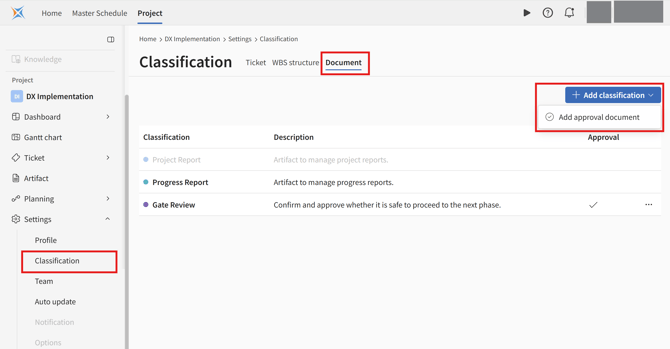
- You will be redirected to the category settings screen. Edit the category title and the fields you want to manage within that category. Once finished, click [Save].
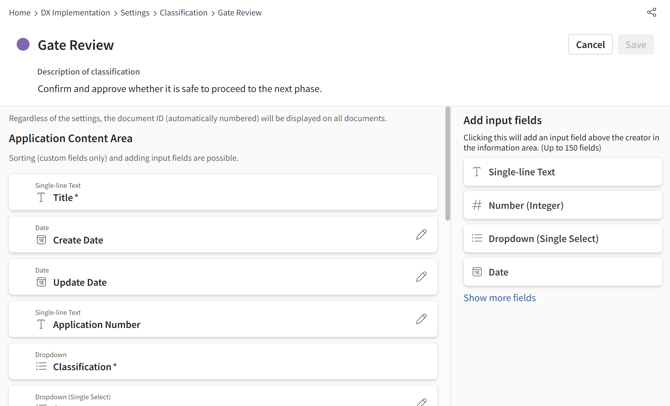
For details on how to configure categories, please refer to the following article:
Creating a Configured Approval Document
- Click [Artifact] > [Add new] in the side menu.
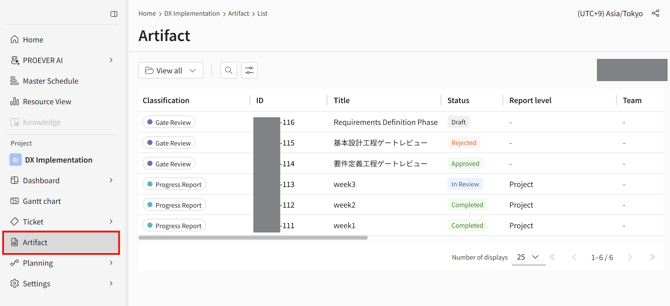
- The details screen will appear. Fill in the subject, application details, and the content requiring approval, then click [Request approval].
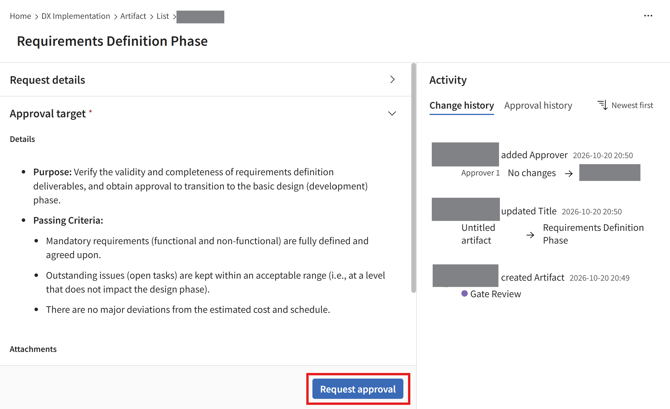
- A notification will be sent to the assigned approvers.
Required Fields
- Approver
- Select at least one approver.
- Approval Content
- Fill in either the details field or attach a file.
Editing an Approval Document
Editing Application Content (Applicant)
- Click [Artifact] in the side menu.
- Click the approval document ticket you want to edit from the list.
Reviewing Application Content (Approver)
- Click [Artifact] in the side menu.
- Click the approval document ticket you want to review from the list.
- Review the content and click [Reject], [Approve], or [Send Back].
A notification will be sent to the assignee and creator.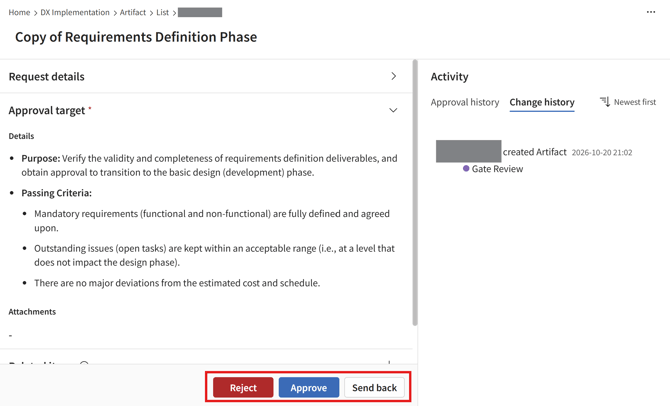
When an Approval Request is Rejected, Approved, or Sent Back
- Rejected / Approved: The ticket content can no longer be edited. The ticket will remain as a record.
- Sent Back: The ticket returns to its pre-application status. The assignee can edit the request and resubmit it for approval. Additionally, the send-back record will be logged in the approval history.
Duplicating an Approval Document
There are three main ways to duplicate an approval document:
- Duplicate via right-click from the Artifact List
- Duplicate via the three-dot icon (
⋮) on the Artifact List - Open the target approval document ticket and duplicate it
Duplicating from the Document List (Right-Click)
- Click [Artifact] in the side menu.
- Hover over the target approval document ticket and right-click.
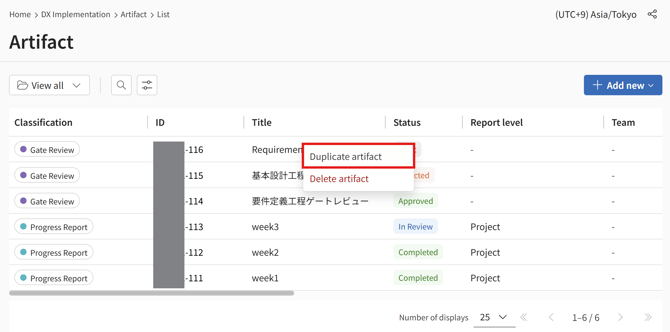
- Click [Duplicate Artifact].
Duplicating via the Three-Dot Icon on the Document List
- Click [Artifact] in the side menu.
- Click the [three-dot icon] to the right of the target approval document ticket.
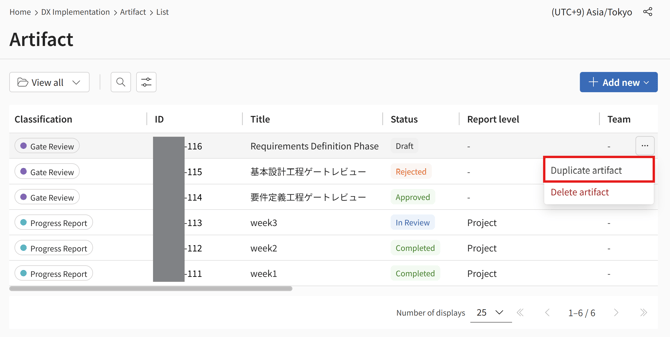
- Click [Duplicate Artifact].
Duplicating from the Ticket Details View
- Click [Artifact] in the side menu.
- Click the approval document ticket you want to duplicate from the list.
- Click the [three-dot icon] on the right side of the screen.
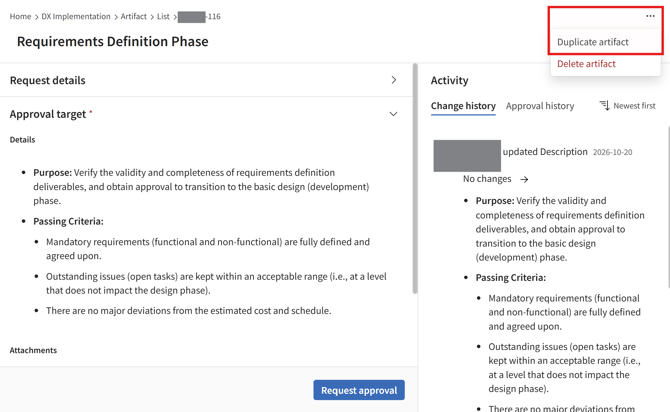
- Click [Duplicate Artifact].