
Key Benefits
-
Reduced Workload: Significantly cut down time spent on initial setup and task registration, allowing you to start actual work immediately.
-
Standardized Quality: Instantly deploy a unified management foundation (WBS structure and analytical viewpoints) across your organization.
To use this feature, the following conditions must be met:
-
Creating Templates: You must have an Innovator license.
-
Using Templates: You must have Project Creation permissions.
-
Target Projects: The project must use a Waterfall approach.
How to Use
First, identify or create the source project you wish to use as a base.
-
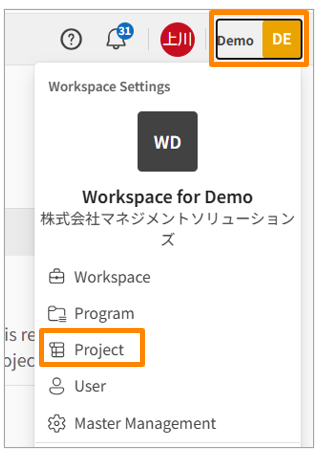
Go to [Workspace Settings] > [Projects].
-
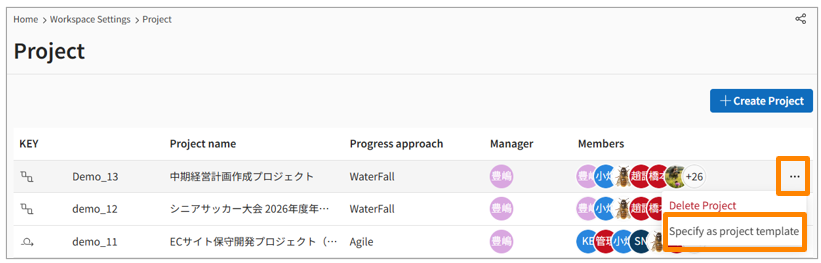
Click the [Three-dot menu (...)] on the far right of the project you want to copy.
-
Note: You can also do this via the [Three-dot menu (...)] in the top right of the Project > Profile screen.
-
-
Click [Specify as Project Template].
-
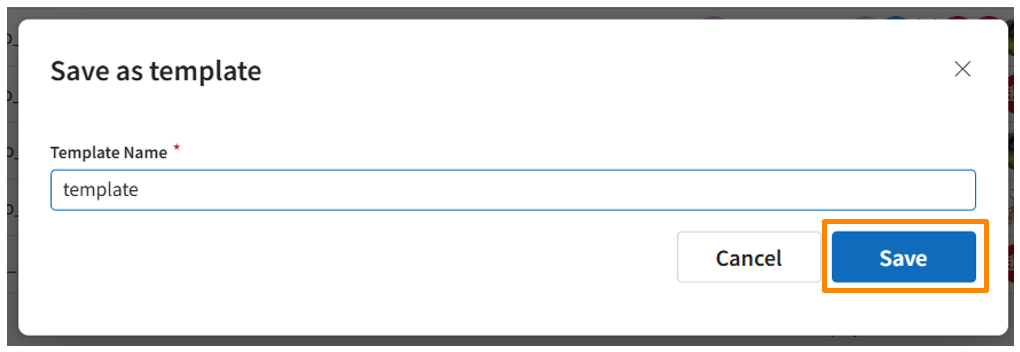
Enter a Template Name and click [Save].
-
Your saved templates can be viewed in the Project List within Workspace Settings.
Editing a Template
-
Go to [Workspace Settings] > [Project].
-
Note: Templates will not appear in the standard [Projects] list in the header menu.
-
-
Click on the project template you wish to edit.
-
Modify ticket configurations or other settings as you would with a normal project. Changes will be reflected the next time the template is used.
What is Copied vs. Not Copied
Copied Items
- Project Name, Approach, Time Zone
- Tickets, Ticket Templates, Statuses
- Parent-Child & Dependency Relationships
- Custom Field Settings and Values
- Project Manager Permissions (PM Role auto-assigned)
Items NOT Copied
- Permission Groups
- Permissions other than PM
- Teams
- Notifications, Logs, Comments
- Attachments