
1. Running an AI Workflow
There are two ways to run a workflow.
1.1 Running a Workflow from the Workflow List
-
Access the Workflow List
Click [PROEVER AI] > [Workflow List] from the side menu. -
Select a Workflow
A list of registered workflows will be displayed. Click [Execute] on the workflow you want to execute.
Note: Use the radio buttons in the top right corner to toggle between preset workflows and custom workflows.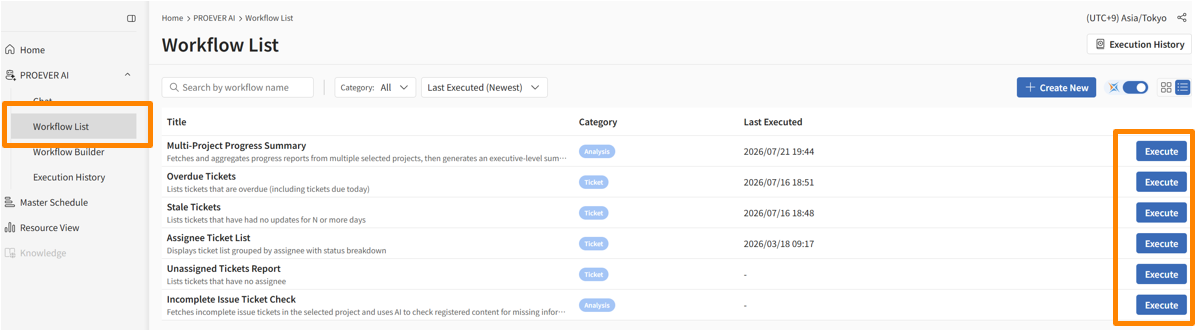
-
Enter Settings and Run
Configure the required conditions on the settings screen that appears, then click [Execute].
Note: Required settings will vary depending on the workflow's processing logic.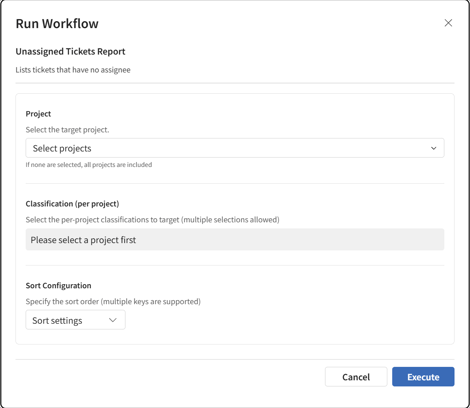
-
Check the Results
Confirm that the results are displayed. Note: Some workflows may take time to complete. Processing runs in the background, so you can safely navigate to other pages.
1.2 Quick Execution from the Header
Click the [▶] icon in the top right of the header and select a workflow to run it instantly from any page in PROEVER.

Workflow Execution Permissions
All workflows for this feature are always executed under the permissions of the user running the workflow. Workflows will not run using proxy permissions of the workflow creator or permissions assigned to the AI. Therefore, data from projects to which the running user does not have access cannot be retrieved through any workflow.
Operations During Workflow Execution
Because workflows run in the background, processing will continue even if you close the execution screen or navigate to another page.
2. Checking Execution History
Execution History allows you to check the progress and past results of workflows you have run.
-
Click [PROEVER AI] > [Execution History] from the side menu.
-
From the displayed execution history list, click [View Results] to check the corresponding output.
Results reflect the data at the time the workflow was executed. Therefore, they may differ from the current data state when you view the history.