
This feature is available as a widget that can be added to your Dashboard or Project Reports.
While you can review your analysis history on the PROEVER AI screen, the analysis itself must be initiated from the Dashboard or Project Report screens.
- Open the Dashboard template editor or the Project Report creation screen.
- Select [AI Ticket Analysis] from Custom Graphs.
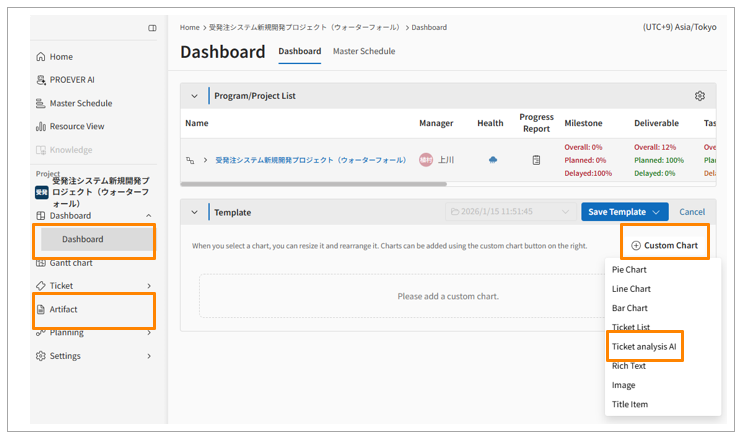
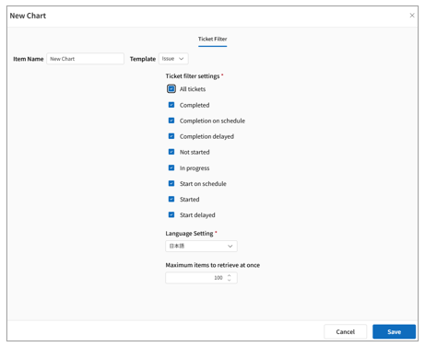
- Configure the analysis settings:
-
Item Name: Enter the name for the analysis area as it will appear on the report.
-
Template: Specify the ticket category to be analyzed.
-
Ticket Filter: Set the status of the tickets you wish to include in the analysis.
-
Language Settings: Select the output language.
-
Maximum Items to retrieve at once: Set the maximum number of tickets to analyze (up to 200).
-
- Click [Save].
- Click [Detailed Analysis] to start the AI analysis and generate results.
Note: You must save the template once before the [Detailed Analysis] button becomes available.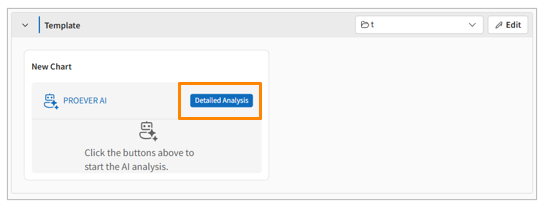
The results are generated in the following format:
| Section | Overview |
| 1.Exective Summary |
|
| 2.Key Achivements and Positive Signs | Beyond identifying issues, the AI highlights positive elements, such as areas progressing according to plan or emerging signs of improvement. |
| 3.Analysis and Root Cause Hypothesis | The AI delves into the underlying factors behind issues like delays or stagnation, providing logical hypotheses to explain why these situations occurred. |
| 4.Strategic Recommendations and Trade-offs | The AI suggests three specific action plans to overcome the current situation. Each proposal clearly outlines the "Action," "Expected Outcome," and "Trade-off (Potential Side Effects)." |
| 5.Supplementary Notes |
This section outlines data constraints (such as missing or incomplete fields) and specific disclaimers regarding AI analysis—emphasizing that all final decisions must be made by a human user. |
If the number of target tickets exceeds the set limit, the system will prioritize "critical tickets closest to the current date," based on the following logic.
| フィルター設定 | Target Data Definition | Priority(Sort Order) | Notes(Behabair when date is not set) |
| Completed | Status is “Completed” | Sorted by Due date closest to today | If missing, use Created Date |
| Completion on schedule | Due date is on or before today | No substitution (date required) | |
| Completion delayed | Due date is on or before today and Status is not “Completed” | ||
| Not started | Status is “Not Started” | If missing, use Created Date | |
| In progress | Status is any value other than “Completed” | ||
| Start on schedule | Start Date is on or before today | ||
| Started | Start Date is on or before today and Status is not “Not Started” | Sorted by Start Date closest to today | |
| Start delayed | Start Date is on or before today and Status is “Not Started” |