
1.Adding, Updating, and Deleting Tickets
1.1 Adding Tickets
- Right-click on any item in the table, or hover over the row and click [
 (three dots icon)] on the far right..
 - Click on the appropriate option from [Add Subtask], [Add Ticket Above], or [Add Ticket Below].


If there is no data, please register WBS-structured tickets (Milestone/Phase/Deliverable/Task) from the side menu [Ticket].
1.2 Updating Tickets
To update a ticket, simply double-click the specific area you want to change.
1.3 Viewing a Ticket
- Right-click an item in the table, or click [(three dots icon)] that appears on the far right when you hover over a row.
- Click [Open Ticket Detail].

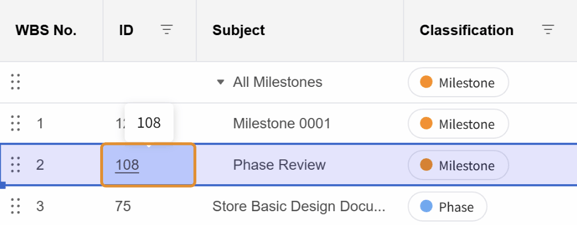
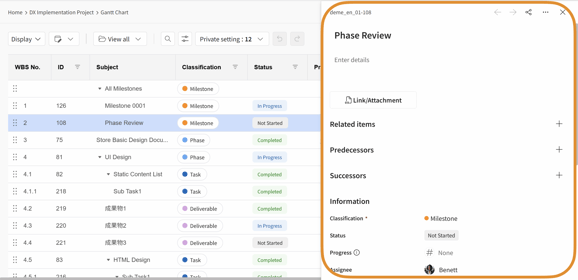
Alternatively, click any ticket ID in the table to view its details in the right side panel.
- Click the ticket ID in the table.
- The ticket details will appear on the right side of the screen.
1.4 Changing Task Hierarchy
- Right-click an item in the table, or click [(three dots icon)] on the far right of the row when hovering.
- Then, click [Indent] or [Outdent].

1.5 Rescheduling Tasks
You can easily move dates by dragging and dropping the center of the bar on the right side of the screen. You can also drag the left edge of the bar to change the Start Date, or the right edge to change the Due Date.

1.6 Copy a Ticket
- Right-click on the ticket subject line, or click the [...] (More Actions) icon at the right end of the hovered row.
- Click Copy.
- If you copy a parent ticket, choose whether or not to include its child tickets.
- Right-click on the destination area, or click the [...] (More Actions) icon at the right end of the hovered row.
- Click Paste Below.

1.7 Copying Input Data
There are two ways to copy input data:
*Note: "Category", "Predecessor", and "Successor" cannot be copied/pasted or auto-filled.
- Using Keyboard Shortcuts (Ctrl + C / Ctrl + V) Select the source data and press Ctrl + C to copy, then select the destination area and press Ctrl + V to paste.
- Using Mouse Drag (Fill Handle) Select the source data, click and drag the [small blue square] at the bottom-right corner of the selection, and the copied content will be applied to the dragged range.
1.8 Deleting Tickets
There are two ways to delete tickets:
- Delete a single ticket
- Right-click on the ticket subject line, or click the [...] (More Actions) icon at the right end of the hovered row.
- Click Delete Ticket.
If you select a parent ticket, choose whether or not to include its child tickets.
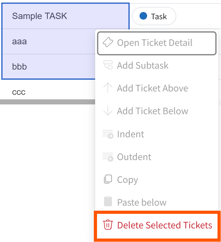
- Bulk delete multiple tickets
- With multiple tickets selected, right-click on the ticket subject line, or click the [...] (More Actions) icon at the right end of the hovered row.
- Click Delete Selected Tickets.
If you select a parent ticket, choose whether or not to include its child tickets.
1.9 Undo/Redo Operations
You can undo or redo operations by clicking [ ] displayed at the top of the Gantt chart.
Gantt Chart Keyboard Shortcuts
| Shortcuts | Context | Action |
| Ctrl + C | Select a field | Copy text |
| Ctrl + C | Select an entire row (Select a ticket) | Copy the ticket |
| Ctrl + V | Copied to clipboard (via Ctrl+C, etc.) | Paste into an input field / Duplicate the ticket |
| F2 | - | Switch to Edit Mode |
| Ctrl + Z | - | Undo |
| Ctrl + Shift + Z | - | Redo |
2.Display Settings
2.1 Changing the Display
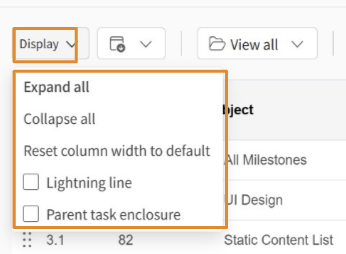
- Click [View] in the upper left corner of the table.
- Set the appropriate option from [Expand All], [Collapse All], [Reset Column Width], [L
- ghtning Lines], or [Highlight Parent Tasks].
2.2 Configuring Visible/Hidden Columns
You can choose which columns to display on the Gantt chart. By saving your configuration as a view, other users can also use the same settings. We recommend selecting the appropriate visibility settings to match the characteristics of your project.
How to Configure: From the settings menu at the top of the Gantt chart screen, simply click the columns you want to show or hide.

2.3 Sorting Tasks on the Gantt Chart
The PROEVER Gantt chart offers two ways to sort tasks. Choose the method that best fits your needs to make your project management more efficient.
1. Automatic Sorting (Default View)
When you first open the Gantt chart, tasks are automatically sorted in chronological order. This order is displayed as "WBSNo.". Within each WBS hierarchy, tasks are sorted by their earliest start date.
-
Simply adding a new task or editing a task's start date on the Gantt chart won't change this order.
-
To see the latest order, you need to refresh your browser.
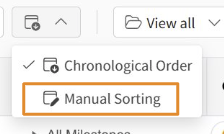
2. Manual Sorting
If you want to sort tasks in a specific order, regardless of their start date, you can switch to manual sorting.
-
To do this, go to the settings menu at the top of the Gantt chart screen and select [Manual Sorting].
-
Then, simply drag and drop the tasks to change their order.
You can reorder across hierarchies.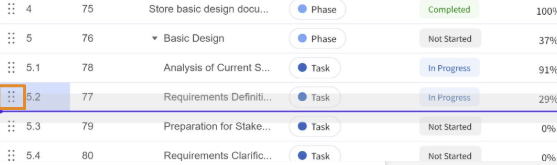
-
Note that you can only reorder tasks within the same WBS hierarchy.
-
This method gives you the flexibility to adjust the order of tasks based on project progress or changing priorities.
2.4 Reordering Columns
The "WBS No.", "ID", and "Subject" columns are fixed and cannot be reordered.
You can reorder columns by dragging and dropping the column headers.
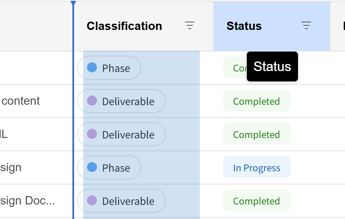
- The column order settings are saved to your view, which can be shared with team members by publishing the view.
- The order of hidden columns is preserved, and they will return to their original positions when unhidden.
2.5 Changing the Display Unit
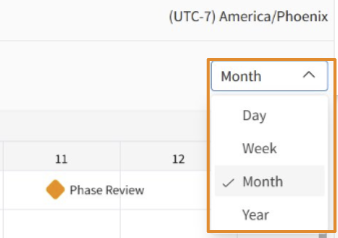
- Click the appropriate option from [Day], [Week], [Month], or [Year] in the top right dropdown menu.
The Gantt chart is viewable by all users. However, if you are Collaborator, you might not be able to add or delete tasks. If you are unable to perform an intended operation, please contact the user with an Innovator license and request a change in permissions.