Permissions for adding, viewing, editing, and deleting Progress report are controlled by permission roles. If you are unable to perform an intended operation, please contact a user with an Innovator license and request a change to your permissions.
Creating a Progress Report
-
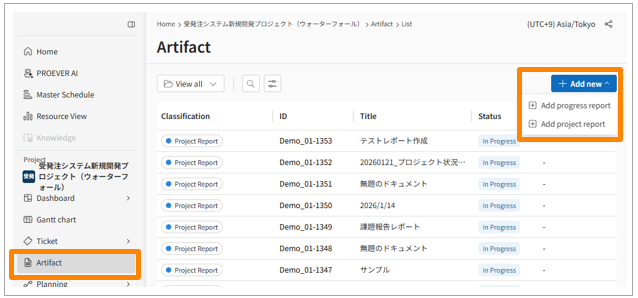
Click [Artifact] on the side menu.
-
Click [Add new] > [Add Progress Report].
-
The detail screen will appear. Fill in the subject, details, and the content for the Information Area.
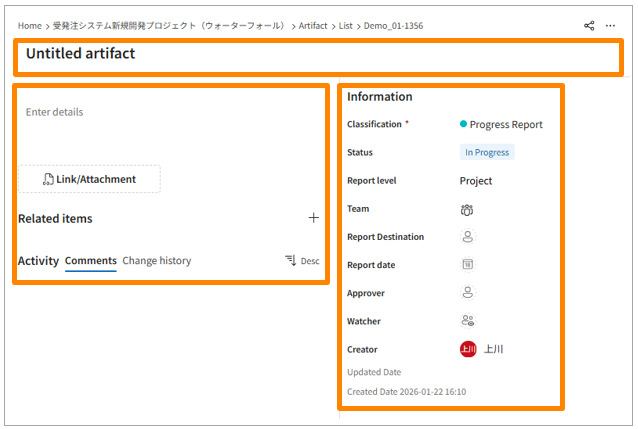
The input fields are as follows:
| Field Name | Description |
| Main area | |
| Subject | Enter the title of the progress report. |
| Details | Enter the body of the progress report. Rich text formatting is supported, and images can also be inserted. |
| Related Items | You can link relevant document data and ticket data. |
| Comments | You can enter comments |
| Change History | The history of changes to the progress report will be recorded. |
| Information Area | |
| Category | Displays the document category |
| Status | Select one from “Draft,” “In Review,” or “Completed.” The status categories are “In Progress,” “In Progress,” and “Completed.” |
| Report Level | For project use: select either “Project” or “Team.” For program use: only “Program” can be selected (cannot be changed later). |
| Report Destination | Select the user(s) to whom the report is addressed. Multiple selections are possible. |
| Team | Select the reporting team. For example, if it is a report from Team A, select “Team A.” |
| Report Date | Enter the date on which this progress report is used for reporting. |
| Approver | Select the user who will approve the report content. |
| Wathcer | The user who created the progress report will be automatically entered. |
| Updated Date | The date and time the progress report was last updated will be automatically recorded. |
| Created Date | The date and time the progress report was created will be automatically recorded. |
Users who are designated as the Team, Recipients, Approvers, Watchers, or Creator of a Progress Report will receive an email notification when the corresponding report is updated.
Editing a Progress Report
-
Click [Artifact] on the side menu.
-
From the displayed list, click the Progress Report you wish to duplicate.
-
Click the [ellipsis] on the right side of the screen.
- Click [Duplicate Artifact].
Duplicate a Progress Report
There are three main ways to duplicate a Progress Report:
-
Duplicate by right-click on the Artifact list screen
-
Duplicate from the [ellipsis] displayed on the Artifact list screen
- Duplicate by opening the applicable Progress Report
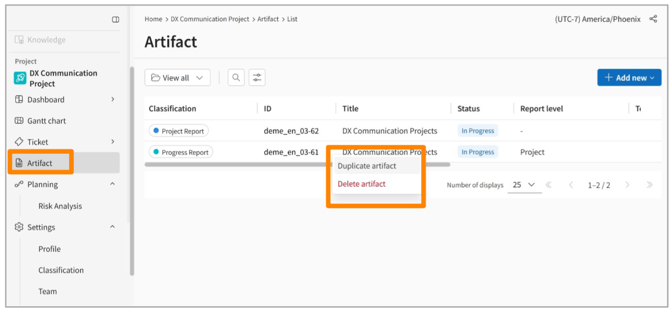
Duplicate from the Artifact list screen
- Click [Artifact] on the side menu.
- Hover over the applicable Progress Report and right-click.
- Click [Duplicate Artifact].
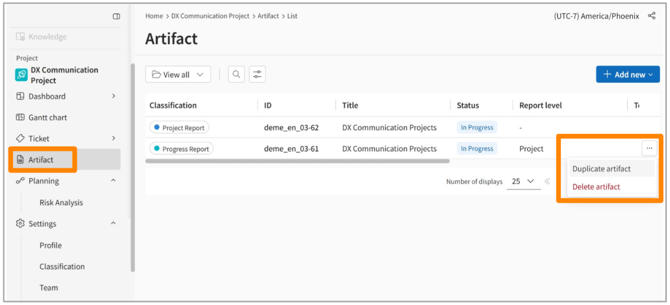
Duplicate from the [ellipsis] displayed on the Artifact list screen
- Click [Artifact] on the side menu.
- Click the [ellipsis] displayed to the right of the applicable Progress Report.
- Click [Duplicate Artifact].
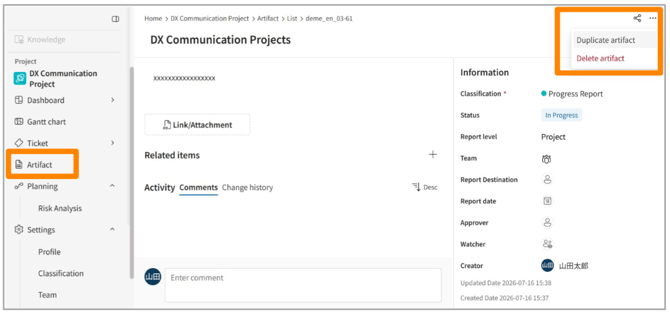
Duplicate by opening the applicable Progress Report
- Click [Artifact] on the side menu.
- From the displayed list, click the Progress Report you wish to duplicate.
- Click the [ellipsis] on the right side of the screen.
- Click [Duplicate Artifact].
Viewing a Progress Report
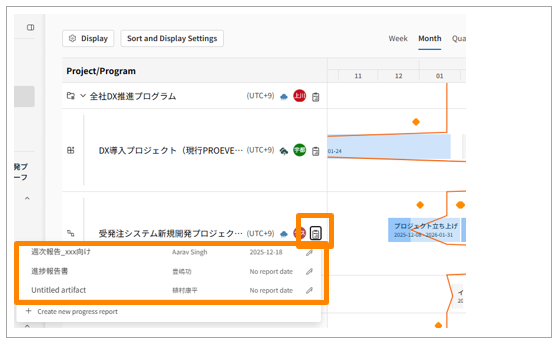
In addition to the Documents List screen, created Progress Reports can also be viewed from the Master Schedule and the Dashboard.
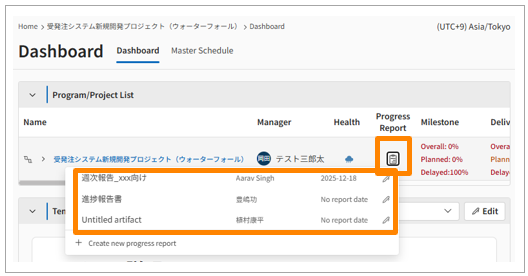
Dashboard Access
You can view a report by clicking on the Progress Report displayed in the project list at the top of the Dashboard. Note that the display location varies depending on the selected reporting level:
-
Program Level Selected: Appears next to the Program Name.
-
Project Level Selected: Appears next to the Project Name.
-
Team Level Selected: Appears next to the Team Name.
Master Schedule Access
You can view a report by clicking the [ ] icon on the Master Schedule. Note: Team Level Progress Reports cannot be viewed on the Master Schedule.