
1. Checking Credit Consumption and Remaining Balance Before and After Running a Workflow To check credit consumption and your remaining balance when running an AI workflow, follow these steps:
- Open the workflow you want to run and click [Execute].
- At the top of the input form, check [Remaining Credits] (the remaining balance bar) and [Previous Run].
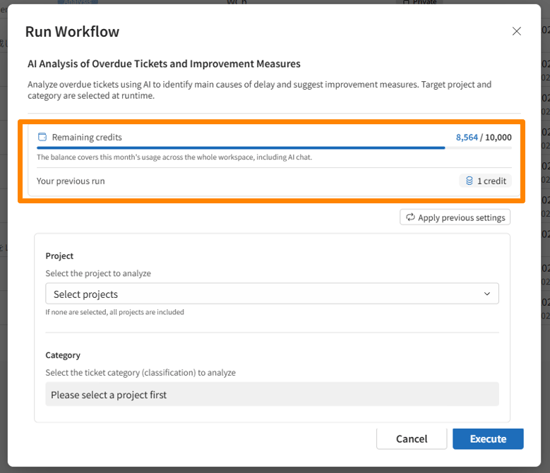
- After reviewing the details, click [Execute].
- The credit consumption for that run will be displayed on the execution results screen.
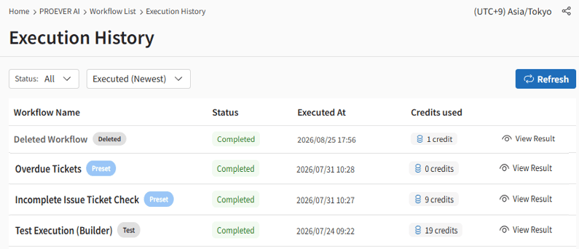
- You can check your past runs in [Execution History] under the [Credits Consumed] column.
- Note on Remaining Credits: Remaining credits represent a shared workspace-wide balance for the current month, including AI Chat. They are not individual user balances.
- Note on Execution History: The execution history only shows your own runs. Therefore, the total of your history will not match the overall balance reduction.
- Status Bar Color: The remaining balance bar changes to an alert color when the balance falls below 30% of the limit, and to a warning color when the limit is reached.
- Display Values: A credit consumption of "-" indicates that the run was incomplete, failed, or canceled (no credits are consumed). A value of "0" indicates that a workflow not using AI completed successfully.
- Test Runs: "Test runs" in the Workflow Builder consume credits under the same rules as production runs.
2. Checking the Overview on the AI Usage Dashboard To check your workspace’s overall AI usage, follow these steps:
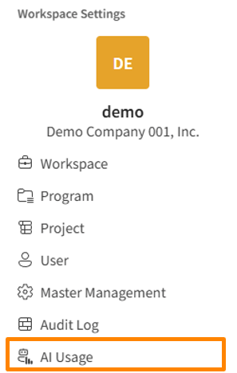
- Open [Workspace Settings] from the workspace menu in the header.
- Click [AI Usage Status] at the bottom of the sidebar.
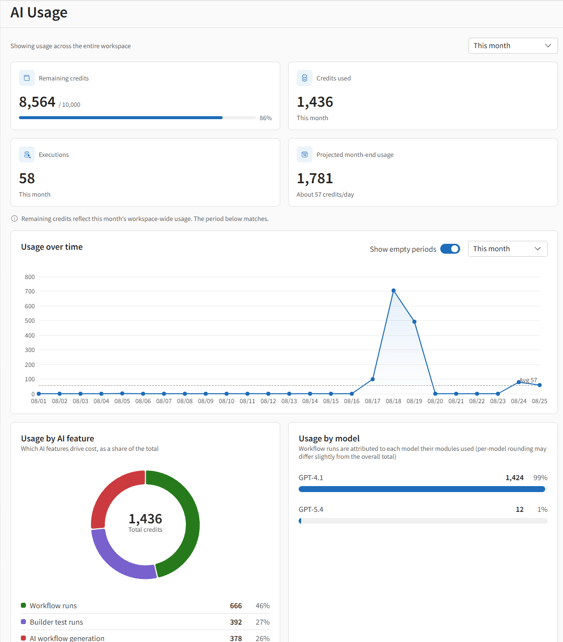
What You Can Check:
- Select the target period (This Month / Last Month / Last 30 Days / Last 3 Months) using the period selector in the top right.
- Review the overview via the top summary metrics (Remaining Credits / Credits Consumed / Execution Count / Projected Consumption by Month-End).
- Switch timeframes under [Consumption Trends] to review medium- to long-term trends.
- Identify cost-driving features under [Consumption by AI Feature] and active users under [Consumption by User].
- Plan Availability: This screen is only available for workspaces on the Innovator Plan. On ineligible plans, the menu item will be grayed out and cannot be selected.
- Access & Scope: Displayed metrics always cover the entire workspace. There are no role-based viewing restrictions.
- Fixed Balance Indicator: The remaining credits display is not affected by the selected date range and always shows the current month's workspace-wide balance.