Any changes made to the order will apply to all users within the same workspace.
Configure Display Settings
Here's how to customize which programs and projects appear on your Master Schedule:
-
From the side menu, click [Master Schedule].
-
At the top of the screen, click [Sort and Display Settings].
-
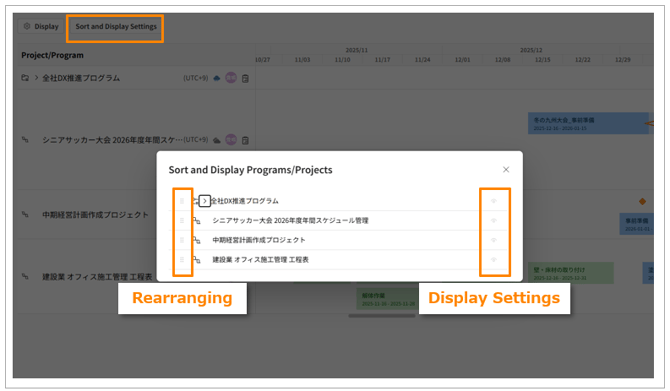
You'll see a list of programs and projects you have access to. To hide a program or project, click the eye icon [
 ] to the right of its name.
 -
Return to the Master Schedule screen. You'll see that the programs or projects you selected are no longer displayed.
To show a hidden program or project again, simply click the eye icon [  ] next to its name in the settings menu.
Changes made to these display settings will not affect other users' screens. These adjustments are applied only to your personal view.
Rearranging Programs/Projects
Here's how to change the order of programs and projects in your Master Schedule:
-
From the side menu, click [Master Schedule].
-
At the top of the screen, click [Sort and Display Settings].
-
You'll see a list of programs and projects you have access to. To reorder them, drag and drop the handle [⋮⋮] located to the left of the program/project name.
-
Return to the Master Schedule screen and verify that the order has been updated as intended.
Configuring Displayed Content
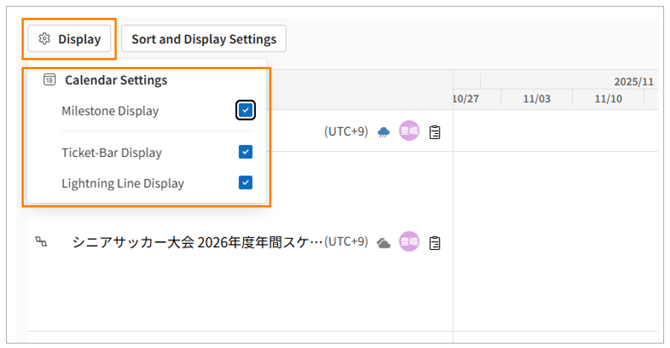
- Setting the Display of Bars, Milestones, and Lightning Lines
You can set the display/hide option from the [ ] located in the upper left of the Master Schedule screen.
 - Setting the Scale of the Calendar Area
You can set the display scale from [Day/Week/Quarter] in the upper right of the Master Schedule screen.