
Only users with an Innovator license can export audit logs.
Exporting Audit Logs as CSV
-
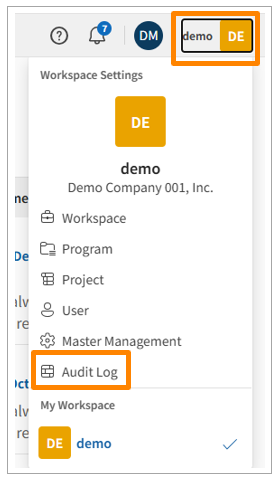
Click the Workspace Name in the top right corner of the screen, then click [Audit Log]. Alternatively, click [Audit Log] in the side menu of the Workspace Settings screen.
-
Set filter criteria such as Start Date, End Date, User, Operation Type, Status, and Target Resource Type, then click [Retrieve logs].
Note: If no filters are set, all available data will be exported (e.g., leaving the User filter blank will output logs for all users).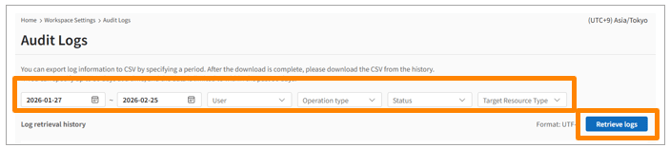
-
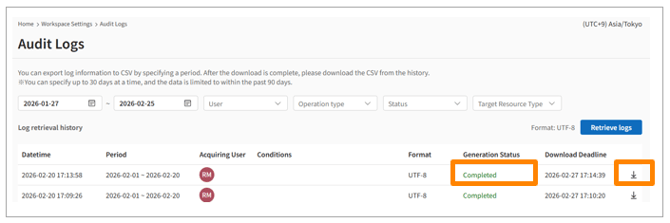
Once the status in the Log Export History list changes from "Generating" to "Completed," click the Download icon to download the CSV file.
Important Notes
- The maximum date range for a single export is 30 days.
-
Audit log export is only available for logs from the past 3 months. If you require older logs, please contact your PROEVER representative.
-
Logs older than 5 years are automatically deleted from the system. If you need to retain them, please export and save the logs yourself.
-
Exported log files are available for download for 7 days. After 8 days, the download button in the Log Export History will be disabled.