
From your User Profile
-
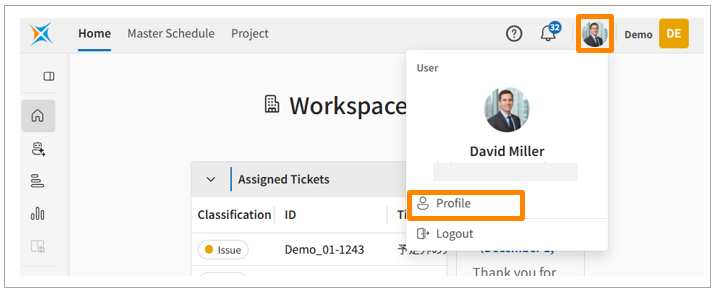
Click your user icon in the top right corner of the screen, then click [Profile].
-
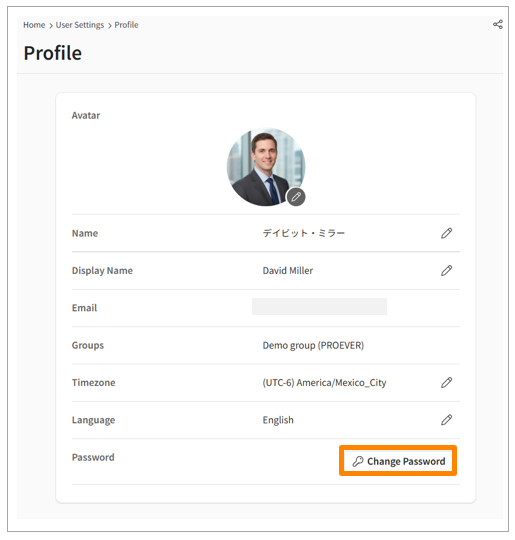
Click [Change Password].
-
Confirm the displayed email address, then click [Send authentication code].
-
Enter the verification code from the email you received, then click [Verify code].
-
Enter your current password and new password, then click [Continue].
-
On the "Password Changed" screen, click [Continue].
From the Login Screen
-
Log out.
-
Select your account. On the password entry screen, click [Forgot Password?].
-
Enter the account verification code from the email you received, then click [Next].
-
Enter your new password, then click [Reset Password].