Only users with an Innovator or Leader license have viewing access.
Lite plan users do not have viewing access, regardless of their license.
You can view the resource status for all programs and projects you have permission to access.
Switching the View
- Select Menu: Click [Resource View] in the sidebar menu.

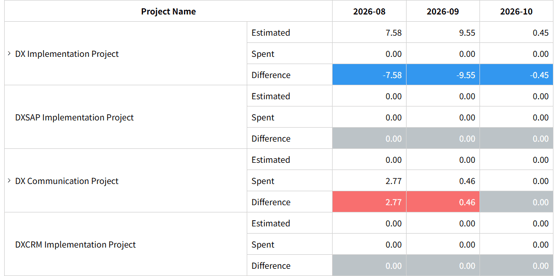
By Project
View planned hours, actual hours, and variance for each project. Drill down to the team and member level under each project.
By Member
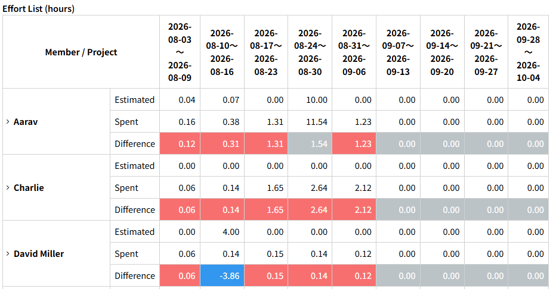
View planned hours, actual hours, and variance for each member. Drill down to the specific projects each member is involved in.
Displaying Resources
First, filter the data to show the specific targets and timeframe you wish to review.
-
Select Target: Use the [Filter] at the top of the screen to select the desired programs , projects, teams, users.
-
Set Period & Unit: Choose your date range and preferred view format (Month, Week, or Day).

The Team and User filter settings are applied according to the following rules:
-
Team: Collects data for all members belonging to the selected team.
-
User: Collects data for the selected user.
-
Team + User (AND Logic): Only collects data where the user is a member of the selected team AND is the person in charge.
-
No Selection: Collects all ticket data, including unassigned items.
Analyzing Resource Status
Use the Graph and Table areas to analyze workload consumption.
■ Identify Trends in the Graph Area
-
Check Variance: Visually compare the line chart (Planned) and bar chart (Actual) to understand overall progress.
-
Identify Issues: Use the color-coded bars to quickly pinpoint projects with significant deviations from the plan.
-
View Detailed Metrics: Hover your cursor over any bar to see specific values for "Planned Effort," "Actual Effort," and the "Variance" for that period.
■ Review Full Data in the Table Area
To see comprehensive data for all projects—including those within the normal range—refer to the table at the bottom of the screen.
Color Legend
| Color | Meaning |
| Red | Actual time exceeds planned time by 20% or more. |
| Blue | Actual time is 20% or more below planned time. |
| Grey | Difference between actual and planned time is within 20%. |
Checking for Capacity Overruns by Member
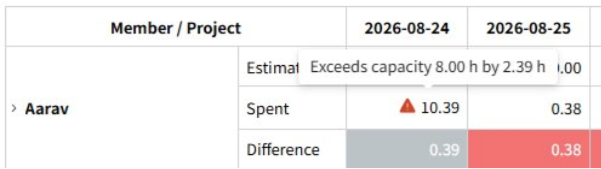
In the By Member view, you can check whether a member's actual hours exceed their capacity limit.
The capacity limit is calculated as follows:
Capacity Limit = Number of Weekdays in the Period times 8 Hours
If actual hours exceed the capacity limit, a warning icon will appear in the corresponding cell.
Hover over the warning icon to view the exceeded hours.