
Integrating data from Backlog / Jira
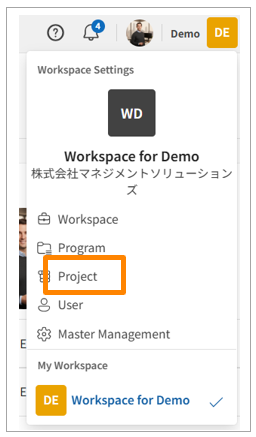
- 【PROEVER】Click the workspace name in the upper-right corner of the screen, select [Projects] from the menu, then click [Create project].
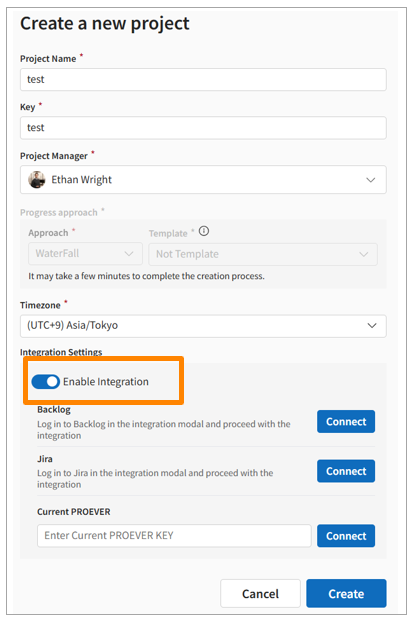
- 【PROEVER】Enter the basic project information, then click [Enable integration].
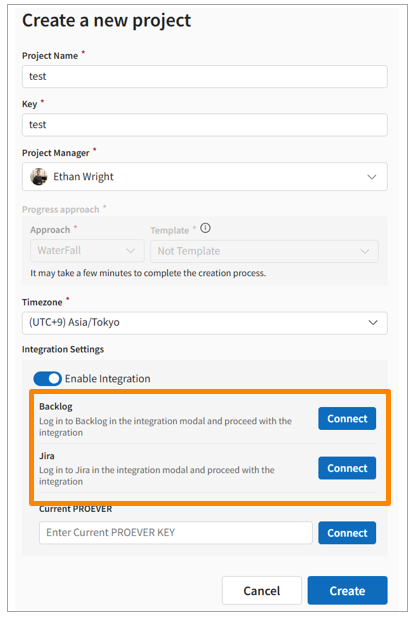
- 【PROEVER】Click [Connect] for the external tool you want to connect.
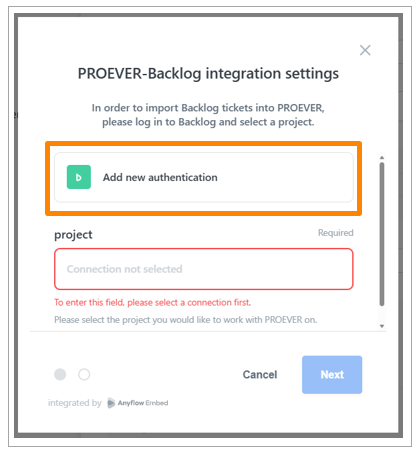
- 【PROEVER】Click [Add authentication].
- 【Backlog / Jira】Obtain the domain of the environment where the project you want to integrate is registered.
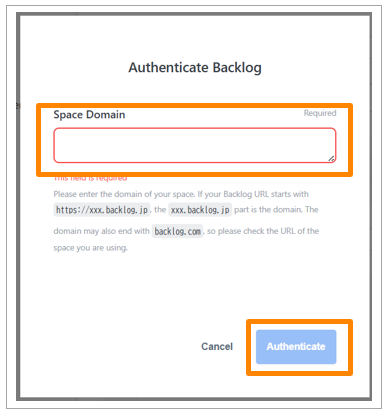
- 【PROEVER】Enter the obtained domain and complete the authentication.
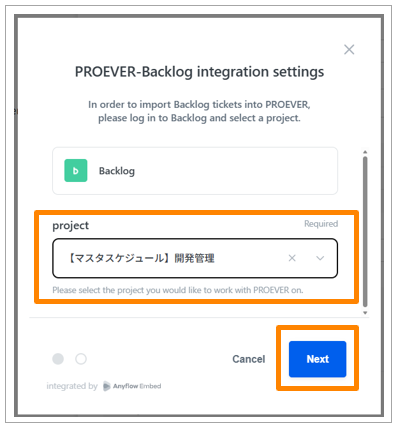
- 【PROEVER】Select the project in the external tool that you want to integrate, then click [Next].
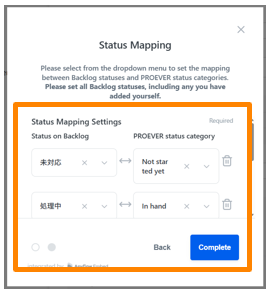
- 【PROEVER】Map the statuses, then click [Complete].
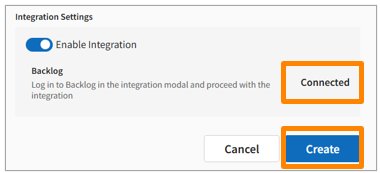
- 【PROEVER】Confirm that “Connected” is displayed, then click [Create].
Integrating data from PROEVER Classic
-
【PROEVER】Click the workspace name in the upper-right corner of the screen, select [Projects] from the menu, then click [Create project].
-
【PROEVER】Enter the basic project information, then click [Enable integration].
-
【PROEVER Classic】Access the project you want to integrate, then click [Settings] > [PROEVER integration].
-
【PROEVER Classic】Click [Create], then copy the generated integration key.
-
【PROEVER】Enter the copied integration key, then click [Connect].
-
【PROEVER】Confirm that “Connected” is displayed, then click [Create].
User Mapping
Assignees can be mapped from the Settings menu after integration. The steps are as follows:
-
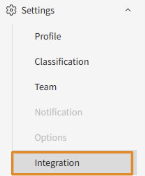
Go to Settings > [Integrations].
-
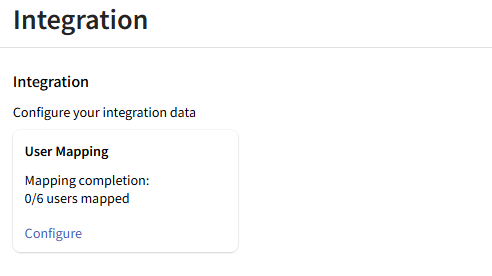
Click [User Mapping].
-
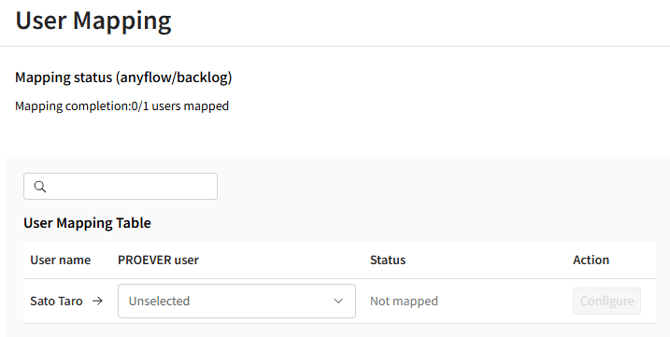
From the dropdown, select the [PROEVER User] that corresponds to the [Username], then click [Configure].
-
Configuration is complete when Status changes to [Mapped].