
The file format for importing standard ticket data is different. Please refer to [this page]. You can update multiple tickets at once using a CSV file. (A single file can handle creation, updates, and deletions.)
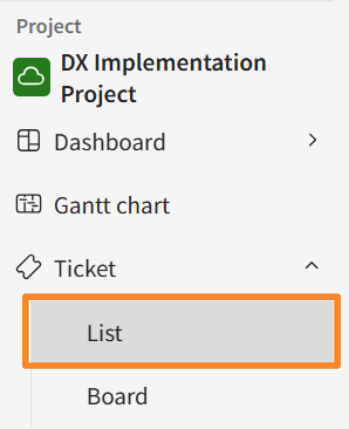
- Click [Tickets] > [List] in the side menu.
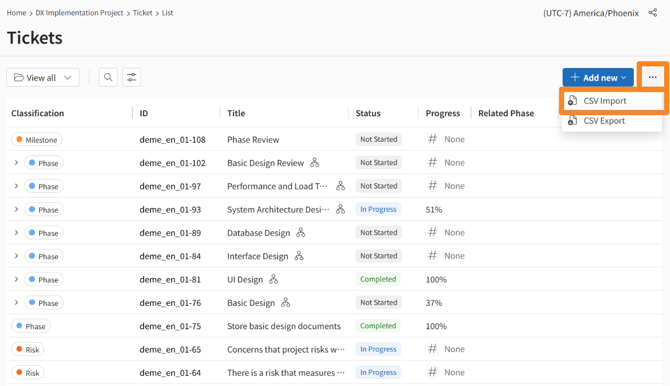
- Click the [...] (More) icon next to [Add New] in the top right corner, then select [CSV Import].
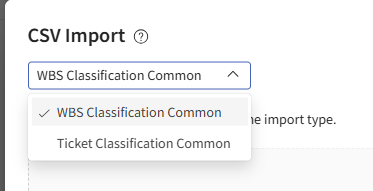
- Select [Common WBS Category] as the target category.
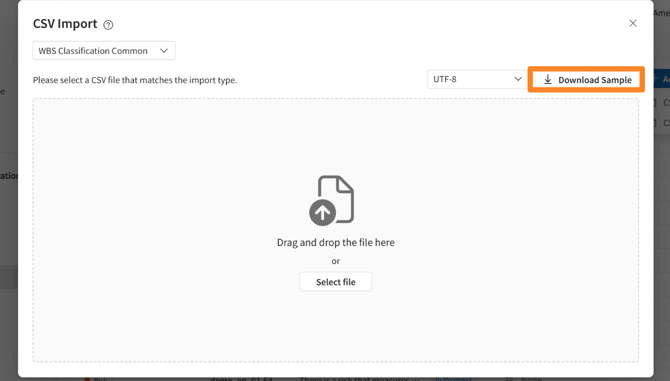
- In the CSV Import modal that appears, click the [Download Sample] button to get the template.
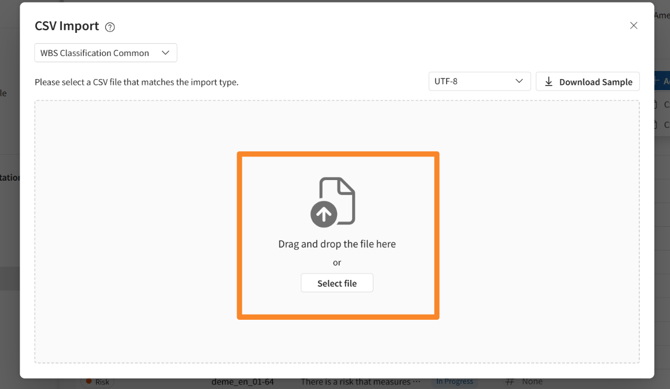
- Edit the CSV file according to the Data Validation Rules* below, then drag and drop it into the [Drag and drop files here] area.
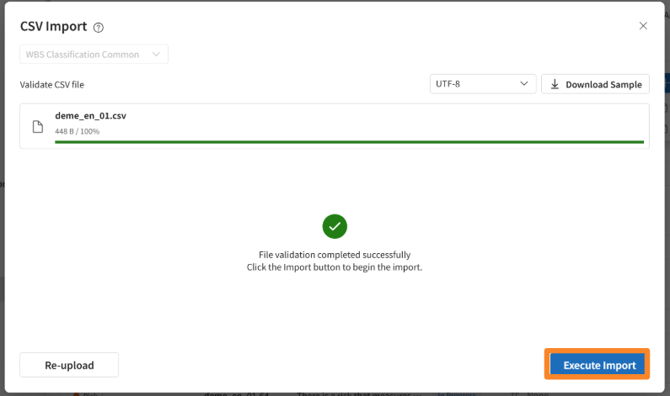
- Once the CSV file verification is complete, click [Execute Import].
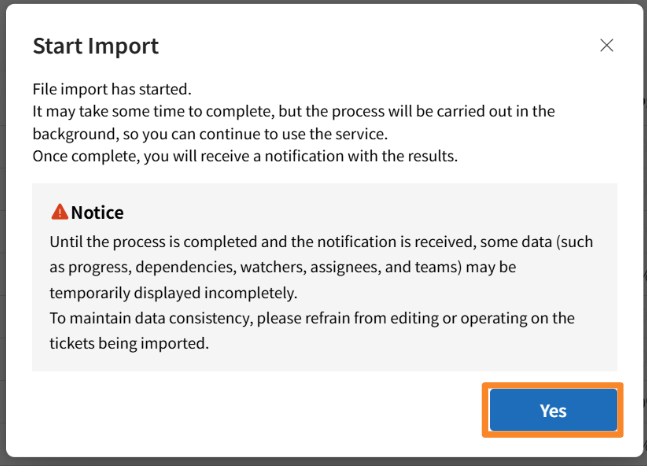
- Click [Yes] in the "Start Import" confirmation pop-up.
- You will receive a notification via the [
 ] icon in the header as soon as the import process is complete.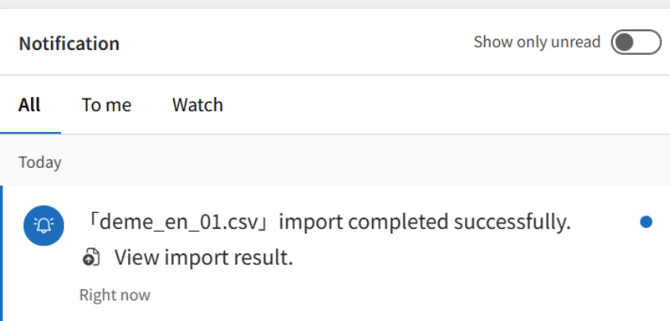
Data Validation Rules*
You can check the CSV validation rules by hovering over the [i] icon in the [Import from CSV] modal. Your WBS configuration CSV file must include the following information:
- ID: Used as a temporary ID when creating a new WBS. It can also be used to reference related items, predecessor tasks, and parent-child relationships.
- Update/Delete: To update or delete an existing WBS, enter the existing WBS No.
- Delete: To delete a WBS, enter "Delete" or "delete". The WBS No. is required for deletion.
- ID and WBS No.: Cannot be entered on the same row simultaneously. Please enter only one or the other.
- Required Fields: WBS No., Title, Category, and Status must be filled in.
- WBS Category: Enter one of the following: Milestone, Phase, Deliverable, or Task.
- Status: Enter one of the following: Not Started, In Progress, or Completed.
- Priority: Enter one of the following: Urgent, High, Medium, or Low.
- Date: Enter in YYYY/MM/DD format.
- Assignee / Watchers: Enter their email addresses.
- Related Items / Predecessor Tasks: Enter the ID or WBS No.
- Description: Supports HTML format. If you want to include line breaks, please use
<br>. - Multiple Values: In the Watchers, Related Items, and Predecessor Tasks columns, separate multiple entries using
||. - A sample file can be obtained via the [Download Sample] button.
| Column Name | Example | Supplementary Notes |
| ID | 1 | A temporary ID used for linking only within the CSV file. Leave blank when creating a new item. |
| Delete | The row will be deleted if "Delete", or "delete" is entered in this column. | |
| WBS No | 1.1 | |
| Parent WBS No | 1 | Enter the WBS No. of the ticket you wish to designate as the parent within the CSV file. |
| Category | Task | Enter either: Phase, Deliverable, Task, or Milestone. |
| Title | Design Document Creation | |
| Status | Not Started | Enter the status set for each category . |
| Progress Rate | 0 | Enter as an integer (whole number). |
| Assignee | yamada_taro@mail.com | Enter the user's email address. |
| Assigned Team | Operations Team | |
| Estimated Hours | 4.15 | Enter a value of 0 or greater (up to 2 decimal places). |
| Actual Hours | Enter a value of 0 or greater (up to 2 decimal places). | |
| Priority | High | Enter either: Urgent, High, Medium, or Low. |
| Start Date | 2026/03/09 | Enter in YYYY/MM/DD format. |
| Due Date | 2026/03/14 | Enter in YYYY/MM/DD format. |
| Actual Start Date | Enter in YYYY/MM/DD format. | |
| Actual End Date | Enter in YYYY/MM/DD format. | |
| Watchers | sato_ichiro@mail.com | Enter the user's email address. |
| Description | ||
| Related Items | 2 | Enter the WBS No. of the target ticket. |
| Predecessor Task | 2FS | Enter the WBS No. of the target ticket. |
Related Items and Preceding Tasks can only specify WBS Nos. that exist within the same CSV file.
The maximum number of items per import session is 5,000 tickets.
You can include custom fields for WBS tickets in your CSV import.
When tickets are imported via CSV, only the automatic progress rate calculation within the parent-child task structure is performed.
The following automatic updates are NOT performed:
-
Automatic updates to other items following a ticket status update (e.g., actual dates, progress rate).
-
Automatic status updates for parent/child tickets.
Need help?
If your import fails, please refer to the help page: "Troubleshooting CSV Ticket Import Errors."