
Duplicating from the List View
Easily duplicate a task with the same details in just one click from the task detail screen.
- Click Tasks > List in the side menu.
- Open the task you want to duplicate.
- Click the [
 (three-dot)] icon in the top right corner and select [Duplicate Tickets].
Duplicating from the Board View
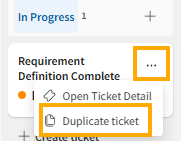
You can easily duplicate a ticket with the same content directly from the Board view.
- Click Tickets > Board in the side menu.
- Click the [(three-dot)] icon in the top right corner of the ticket panel you want to duplicate, then select [Duplicate Ticket].
Duplicating from the Gantt Chart View
You can copy and paste entire rows while checking your schedule.
- Click Gantt Chart in the side menu.
- Right-click the title of the task you want to duplicate, or hover over the row and click the [(three-dot)] icon that appears on the right, then select [Copy].
- Open the menu in the row where you want to paste the task, and click [Paste Below].

💡 Handy Shortcut Keys
The Gantt Chart view also supports keyboard shortcuts for copying and pasting.
- Copy:
Ctrl + C(Cmd + Cfor Mac) - Paste:
Ctrl + V(Cmd + Vfor Mac)
What gets copied (Carried over)
- Title: To prevent confusion, the title of the newly duplicated task will automatically be saved as follows:
- Example: Copy of [Existing Task Title]
- Basic Information: Task category, assignee, etc.
- Custom Fields: Values of each custom field.
- Subtasks: If the task has a parent-child relationship (subtasks), the behavior depends on whether you check the Copy subtasks checkbox:

- Checked: All subtasks under the parent task will be duplicated together.
- Unchecked: Only the parent task (selected task) will be duplicated independently; subtasks will not be carried over.
What does NOT get copied (Not carried over)
- Common to all ticket classification
- Comments
- Change history (Activity log)
- Bug ticket classification only
- Planned investigation start date
- Planned investigation end date
- Actual investigatioin start date
- Actual investigatioin end date
- Investigation approval date
- Planned workaround start date
- Planned workaround end date
- Actual workaround start date
- Actual workaround end date
- Workaround approval date
- Planned fix start date
- Planned fix end date
- Actual fix start date
- Actual fix end date
- Fix approval date
- Investigation approver
- Workaround approver
- Fix approver